What Is FlowDocu? Interactive Diagrams with Documentation Built In
Explore FlowDocu’s component documentation, reference links, scenarios, templates, sharing, and exports—and learn how to create your first interactive diagram.

FlowDocu brings interactive diagrams and component documentation into one place. You can map a system or process, attach details and reference links to each node, and create guided scenarios that explain how the flow works.
Readers can hover for a quick description, click for full documentation, or follow a scenario step by step. The same diagram can serve as a visual overview, a documentation entry point, and a walkthrough.
This guide covers what FlowDocu does, its main features, and how to start using it.
Table of contents
- What is FlowDocu?
- Put the explanation on the component
- Walk readers through a flow
- Create diagrams people can explore
- Share your work in the format you need
- Organize diagrams and work with others
- Who can use FlowDocu?
- Start with one useful flow
- Frequently asked questions
What is FlowDocu?
FlowDocu is a web-based interactive diagramming tool where components carry their own documentation and flows can be explored step by step.
You create a diagram, connect its components, and add the context readers need. They can hover for a quick description, click for full documentation, or play a scenario to understand a sequence of events.
The product brings three things together:
| Part | Purpose |
|---|---|
| Visual diagram | Show the components and their relationships |
| Component documentation | Explain responsibilities, ownership, dependencies, and supporting resources |
| Flow scenarios | Guide readers through how a process or system behaves |
You can use these together or focus on what your explanation needs. A documentation diagram may rely mostly on component details and links. An educational flow may benefit more from scenarios and captions.
Put the explanation on the component
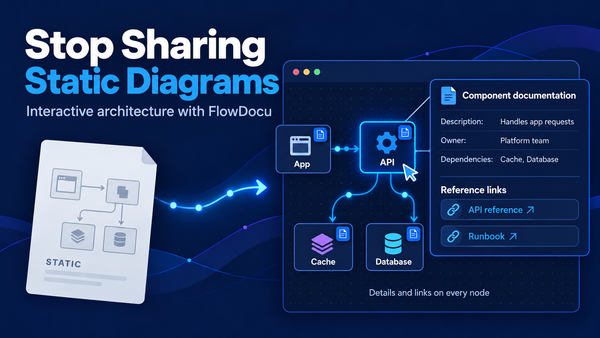
Component documentation is central to FlowDocu. Each node can hold information about the part of the system or process it represents.
Quick context on hover
Hover over a component to see its description and owner. This gives readers a quick answer without interrupting their exploration of the overall diagram.
Click the component to open the fuller documentation when they need more detail.
Ownership, dependencies, and failure behavior
You can document who owns a component, its upstream and downstream dependencies, and what happens when it fails.
That information is useful during onboarding and design discussions because readers can investigate the component they are looking at instead of relying on the presenter to explain every detail verbally.
The documentation is authored by the diagram creator. Keeping it accurate remains part of maintaining the diagram.
Documentation for different component types
Different components need different kinds of explanation. FlowDocu includes documentation for APIs, queues, databases, functions, code blocks, and schedules.
For an API, that can include environments, endpoints, authentication, input arguments, request and response examples, error codes, and rate limits. Other component types let you describe the details relevant to their role in the flow.
Mock API examples with Try It
The Try It tab lets readers run mock requests against documented API examples.
It provides a way to explore the examples attached to the component. The results illustrate the documented behavior; they should not be treated as verification of a live production endpoint.
Reference links and URLs
You can attach reference links to each component—for example, a repository, API reference, runbook, or external documentation page.
A concise explanation can live on the node, while a link takes the reader to the resource containing the full detail. That makes the diagram a useful entry point into the documentation you already maintain.
Walk readers through a flow
Some explanations need a sequence. Readers need to understand what happens first, what happens next, and which conditions change the path.
Animated arrows
Animated arrows show the direction of movement through the diagram. Source cards can also gently pop to indicate where a journey starts.
These visual cues help readers follow a flow while keeping the surrounding architecture visible.
Scenarios with captions
You can create step-by-step scenarios with captions explaining each stage. A scenario might describe a successful request, a cache miss, or a fallback after a provider error.
Multiple scenarios can use the same canvas, so readers can compare paths without switching between separate diagrams. Failure paths can be highlighted in red to make the change in behavior easier to follow.
Record your own steps
FlowDocu also lets you record scenario steps by clicking through the diagram.
This gives you a way to turn a walkthrough into an explanation that others can replay. The scenario still needs to be authored and reviewed against the behavior you intend to describe.
Create diagrams people can explore
The visual side matters too. A diagram should be readable when someone first opens it, before they explore any documentation.
FlowDocu includes colorful cards, bold headers, highlighted titles, and a dark canvas mode. An icon library includes recognizable logos, and you can upload your own icons.
Templates provide starting layouts for system flows, data architecture comparisons, explainers, flowcharts, and radial or circular diagrams. You can adapt one to your subject instead of arranging everything from a blank canvas.
The goal is to give creators enough flexibility to make a clear explanation while keeping the result approachable for the reader.
Share your work in the format you need
A diagram may be viewed in a team discussion, embedded in documentation, or included in an article. FlowDocu supports several ways to share it.
| Option | Useful for |
|---|---|
| Read-only share link | Letting readers explore a diagram in a clean viewer |
| Live embed | Including an interactive diagram in a blog, docs site, or Confluence page |
| Presentation mode | Guiding an audience through the flow |
| PNG export | Adding a static view to a document or slide |
| SVG export | Using a scalable diagram image |
| Animated GIF export | Sharing an animated flow where a live embed is unsuitable |
Embed settings let you control which sites can display a diagram. Embeds remain connected to the source flow, so editing that flow updates the embedded versions.
That simplifies distribution, but accuracy still depends on maintaining the diagram as the system changes. A live embed does not automatically detect changes in your architecture.
Choose a sharing format based on what readers need. A live link or embed gives them access to the interactive documentation; an exported image provides a visual snapshot.
Organize diagrams and work with others
FlowDocu includes workspaces and projects for organizing flows. Projects act as folders, helping keep related diagrams together.
Teams can use owner, admin, editor, and viewer roles to manage participation and access. This supports a workflow in which some people maintain diagrams while others explore them.
For an individual creator, the same structure can organize diagrams by product, topic, or article.
Who can use FlowDocu?
FlowDocu can be used wherever a diagram helps explain how something works, from technical architecture to business processes and learning materials.
| Audience | Possible use |
|---|---|
| Engineers | Document systems, services, APIs, and dependencies |
| Data engineers | Explain pipelines and data architectures |
| Tech leads | Support design reviews and onboarding walkthroughs |
| Technical writers | Embed diagrams with supporting context in documentation |
| Educators and creators | Build guided explainers for articles and learning materials |
| Founders and students | Map business processes, product flows, or projects |
For live examples, visit Stop Sharing Static Diagrams: Interactive Architecture Diagrams with FlowDocu. That companion article focuses on sample diagrams you can explore, including data architectures, an API flow, and AI model routing.
Start with one useful flow
FlowDocu is free to use, with no credit card required. You can start building without an account and sign up when you want to save your work.
A small flow is a good place to begin:
- Choose something you explain regularly. A request path, pipeline, or process with a few components is enough.
- Start from a template or blank canvas. Add the components and their connections.
- Write a short explanation for each node. Add ownership, dependencies, and reference links where relevant.
- Add a scenario if sequence matters. Use captions to explain the steps and any alternative path.
- Review it as a reader. Check that labels, documentation, and links make sense before sharing.
Start with enough detail to answer the questions people commonly ask. You can expand the diagram as you learn what readers need.
Frequently asked questions
What is FlowDocu?
FlowDocu is an interactive diagramming tool that combines visual diagrams with component documentation, reference links, and step-by-step flow scenarios.
Is FlowDocu only for architecture diagrams?
No. It can also explain data pipelines, business processes, product flows, and educational topics. System architecture is one of several use cases.
Can I attach documentation and URLs to every component?
Yes. Components can carry descriptions, ownership, dependencies, failure behavior, and reference links. Component-specific documentation supports details such as API endpoints and payload examples.
Do I need an account to try it?
You can start building without an account. Sign up to save your work.
Is FlowDocu free?
Yes. FlowDocu is currently free to use, with no credit card required.
Can I embed a diagram in my website or documentation?
Yes. FlowDocu supports live embeds and controls over which sites can display them. Updating the source flow updates its embedded versions.
Can I use FlowDocu with a team?
Yes. Workspaces, projects, and owner, admin, editor, and viewer roles support organizing diagrams and working with others.
Does FlowDocu automatically discover or monitor my system?
The workflow described here involves creating and maintaining diagrams and scenarios yourself. It should not be treated as automatic architecture discovery or production monitoring.
Try FlowDocu
Start with a flow you want others to understand. Add the components, document their responsibilities, attach useful links, and include a scenario when the sequence matters.
Try FlowDocu to build your first diagram, or explore the live examples to see its features in use.
FlowDocu is a personal project built by me (Naveen Kumar) alongside his full-time work, drawing on his experience with data flows and system architecture. Read the About page for the story behind it, or share feedback through the contact page.